Build your first mix
PodMelody builds a continuous queue from the podcast and music sources you select. You choose the ingredients; PodMelody handles the sequence.
- Open Podcasts and follow at least one show, import your Apple Podcasts library, or create a Podcast Station.
- If you want music in the mix, open Music, allow Apple Music access, and load your playlists or Apple Music stations.
- Return to Home and tap the podcast and music source cards you want to include. Selected cards stay selected for future mixes.
- Set Songs between pods to choose how many songs should play between podcast episodes.
- Tap Start Mix. PodMelody builds the queue and begins playback.
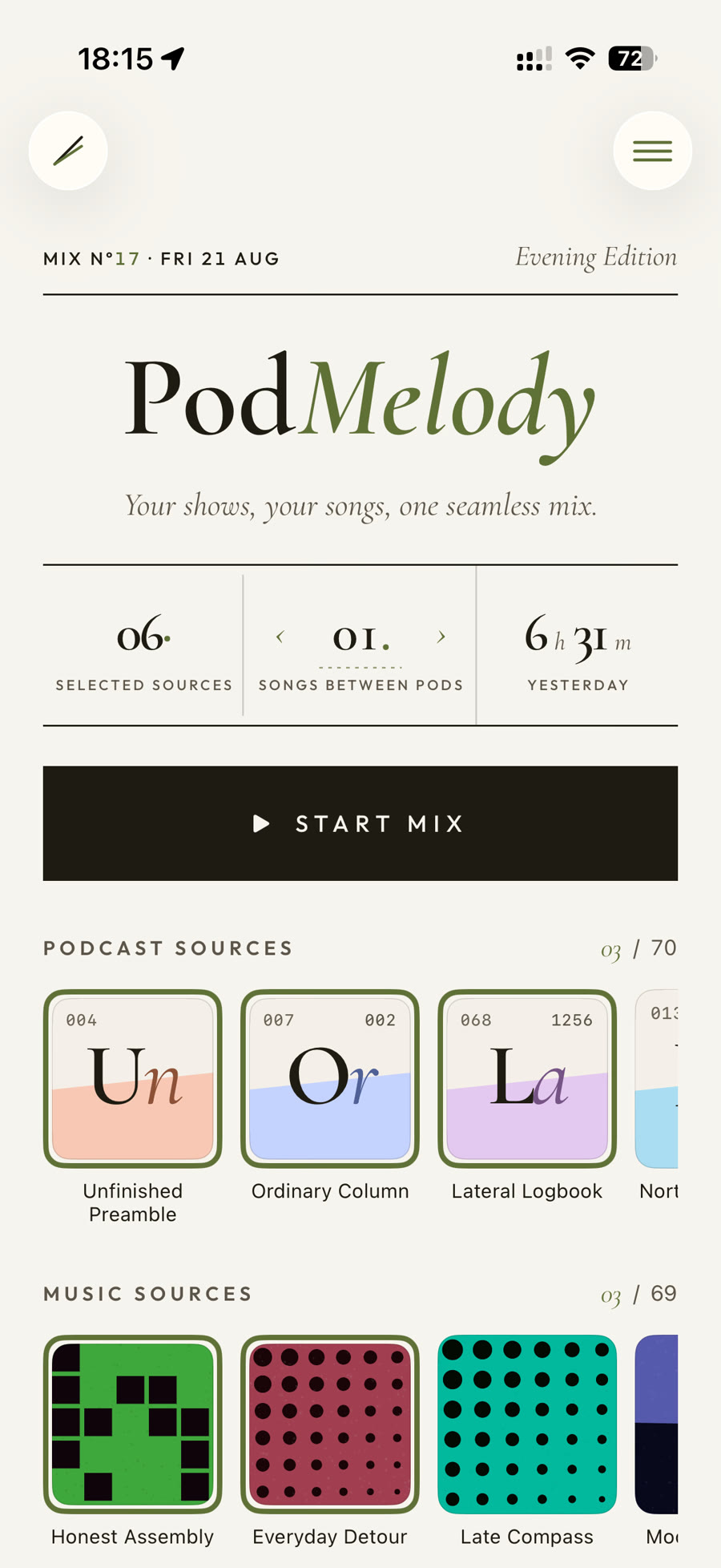
The Slip Angle Dynamics (SAD) mark is also the Device Activity button. In the Editorial theme, tap the two-line SAD mark at the top left of Home to see:
- Library Sync — whether iCloud is ready, setting up, importing or exporting changes, waiting for a connection, or needs attention.
- This Device — how many podcast episodes are downloaded here, how many have been pre-processed and are ready, and how many still need work.
- Pre-processing — whether preparation is idle, waiting for the charger or sound analysis, actively preparing, processing, compacting or finalising, or was paused. When work is available, the sheet offers Start pre-processing or Resume pre-processing. While a pass is running, it offers Continue in background, which asks iOS to keep the work going after you leave PodMelody.
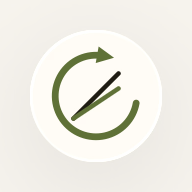
At a glance, the plain SAD mark means Library Sync is ready. A ring filling around it shows a pre-processing pass running right now; an open arrow ring means episodes are ready to process or a paused pass can be resumed. Every pass appears here, including the ones PodMelody starts on its own. While iCloud or downloads are active—or if sync needs attention—the mark changes to the relevant progress, cloud, download or warning symbol. Opening Device Activity does not start anything by itself; work begins when you tap Start pre-processing or Resume pre-processing.


Apple Music is optional. You can build and play a podcast-only mix without Apple Music access or a subscription.
Add podcast sources
PodMelody supports two kinds of podcast source:
- Shows are individual RSS podcast subscriptions. Search for a show, follow it, then select it on Home when you want its unplayed episodes in the mix.
- Podcast Stations are groups of shows that you create. Use one when several shows belong together and you want to select the whole group as a single source.
You can import subscriptions from Apple Podcasts or from an OPML file under Settings → Import & export. Episode lists provide search, sort, and playback-state filters; shows with a feed problem are identified so they can be checked or repaired.
Add Apple Music sources
Open Music and switch between Playlists and Stations. The first time you use music, allow PodMelody to access Apple Music.
- Playlists are finite sources. PodMelody draws tracks from the selected playlists, optionally shuffles them, and places those tracks between podcasts.
- Apple Music stations are open-ended recommendation sources. They do not have a fixed track list. Apple chooses a track when the station's queue slot begins.
For a station slot, PodMelody lets Apple Music choose one track, then stops the station from automatically continuing and returns control to the PodMelody queue. That is how the selected number of songs between podcasts remains predictable.
Music playback requires Apple Music permission and an active Apple Music subscription. Station choices can vary between runs and devices.
Choose how the mix is built
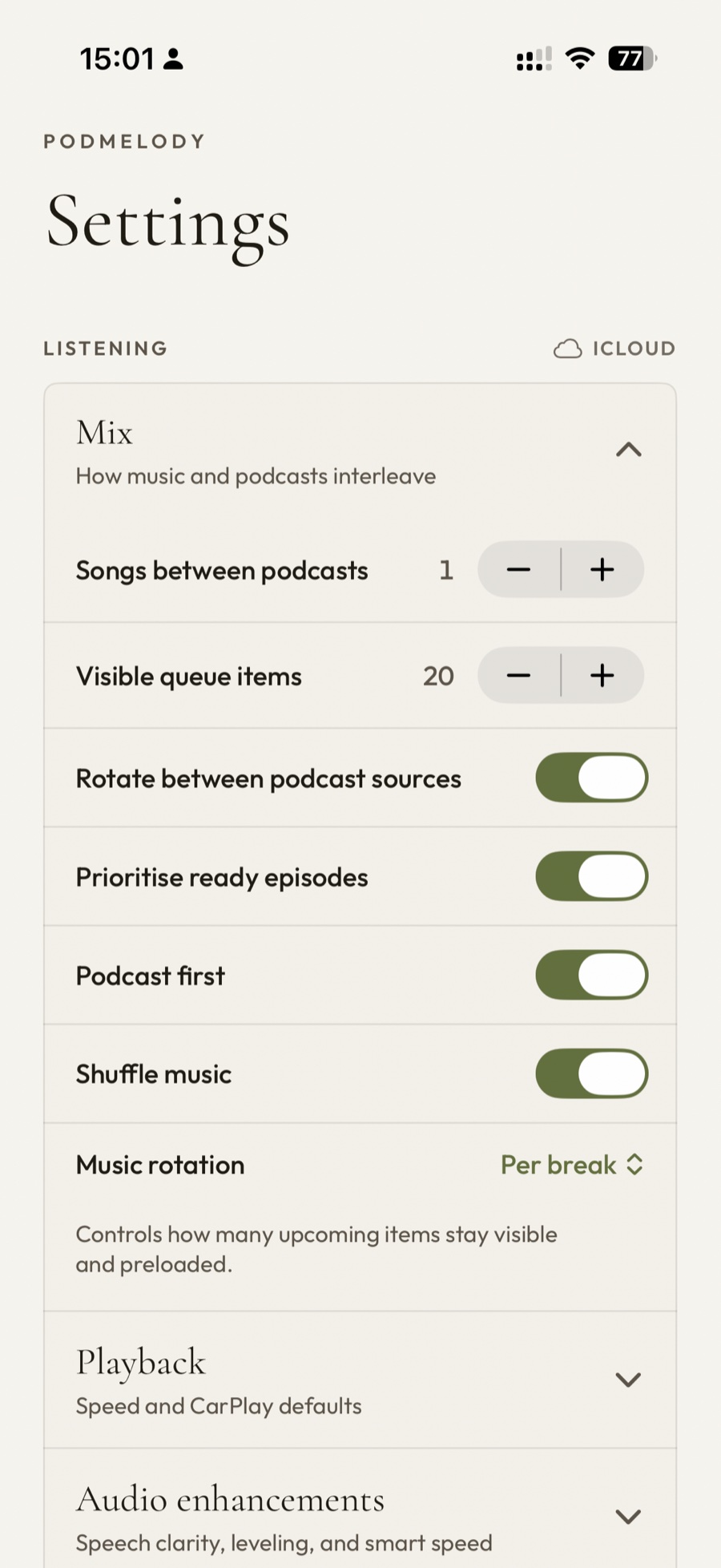
The controls on Home cover the essentials. For more control, open Settings → Mix:
- Songs between podcasts sets the size of each music break.
- Rotate between podcast sources alternates episodes across the selected shows and Podcast Stations.
- Prioritise ready episodes favours episodes that are already available to play.
- Podcast first chooses whether a new mix begins with a podcast or music.
- Shuffle music randomises tracks drawn from playlists.
- Music rotation can change music source after each song or keep one source for the whole break.
- Visible queue items controls how much of the continuing mix is shown and preloaded.
Use the queue and Play Now
Start Mix builds from your selected sources. Play Now, available from a source card's menu, is different: it starts that single source immediately without changing your saved mix selections. Playing a track directly from a playlist similarly starts that track rather than rebuilding the complete mix.
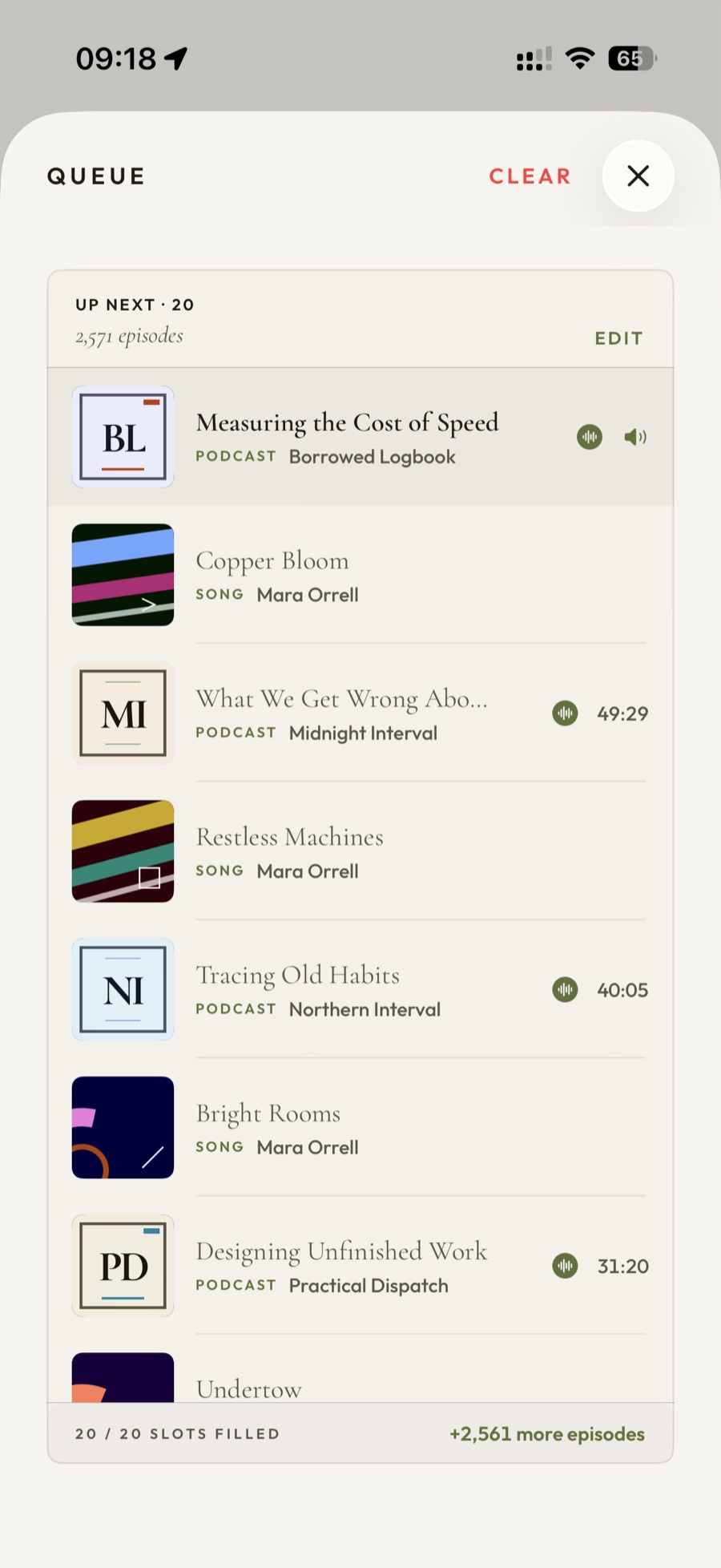
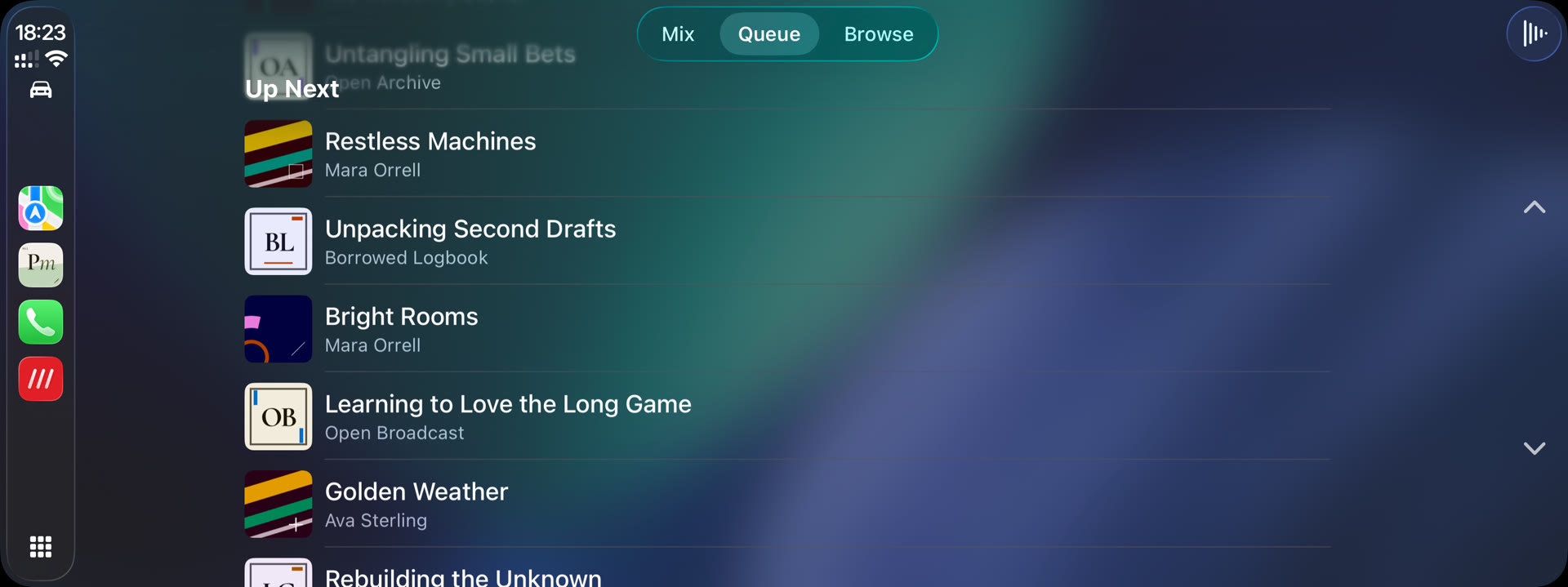
Open the Queue from Home or Now Playing to see the current item and what is coming next. You can reorder or remove visible items, or clear the queue. The visible list is a rolling window, not necessarily the full mix; PodMelody keeps extending it from the selected sources as playback continues.
Use Now Playing
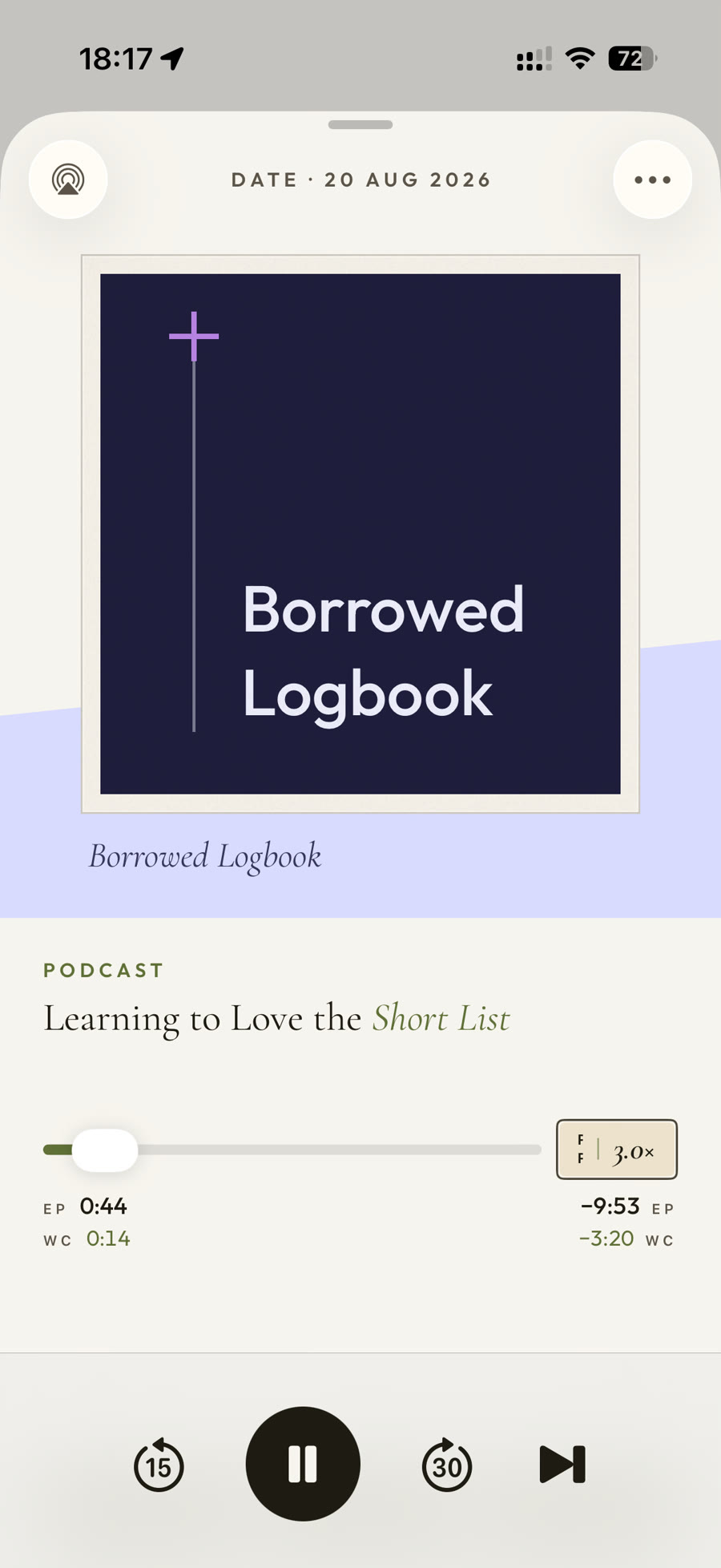
Tap the mini player to open the full Now Playing screen. The controls change to suit the current item:
- Scrub through an episode, adjust podcast speed, and use chapter markers when the publisher supplies chapters.
- Open show notes, add or view bookmarks, share an episode, or set a sleep timer.
- Choose AirPlay, headphones, speakers, or another available system audio output.
- Use voice enhancement, volume levelling, silence compression, and the other Plus audio tools when they are enabled for podcast playback.
- For supported Apple Music tracks, mark a favourite or choose Suggest Less Like This.
Turn an iPhone sideways and Now Playing spreads into two panes — the cover on one side, the timeline and Up Next on the other. On iPad the player and the queue take the whole screen; the X at the top-left closes the player.
Downloads and pre-processing
PodMelody Plus can keep podcast episodes ready for offline playback. Under Settings → Downloads, set the number of episodes to retain per station, choose whether mobile data may be used, and tap Sync downloads to bring the device up to date. Individual shows can use their own download limit. The same section shows storage use and can delete downloaded files.
This section manages podcast audio. Apple Music controls whether playlist tracks are available offline, and Apple Music stations require a connection.
Pre-processing is separate from downloading, and also part of Plus. It prepares downloaded episodes ahead of playback so some audio work needs less processing in real time. To use it:
- Download the episodes you want PodMelody to prepare.
- Set a podcast playback speed above 1.0×.
- Open Settings → Audio processing and enable Pre-process episodes.
- Optionally enable Only when charging or Continue during playback to control when preparation runs.
Pre-processing runs on this device. If iOS pauses background work, PodMelody saves its progress and resumes later. To keep a pass going as you leave the app, open Device Activity while it is running and tap Continue in background, which asks iOS for the time to finish.
Downloaded and pre-processed audio files remain on the device that created them; they are not uploaded to iCloud.
Sync, Handoff, and device-local files
PodMelody uses several different Apple features to continue your listening. They serve different purposes:
- iCloud sync keeps subscriptions, Podcast Stations, synced settings, played state, bookmarks, history, and episode positions in step across your Apple devices.
- Settings scope is shown inside Settings. Items marked iCloud sync; items marked This Device, including download, processing, and auto-continue preferences, remain on that device.
- Cloud queue continuation saves the PodMelody queue so another device can offer to continue it. Under Settings → Handoff, Auto-continue queues from other devices can accept an idle-device queue automatically; active playback still asks before switching.
- Apple Handoff is the nearby-device system feature. While a podcast is playing, it advertises that episode and position so you can open it on a nearby iPhone, iPad, or the iPad version of PodMelody running on an Apple Silicon Mac.
- Device-local files include downloaded and pre-processed audio. Each device downloads and prepares its own copies.
CarPlay
PodMelody includes an enhanced Now Playing interface with glanceable playback controls. PodMelody Plus unlocks the expanded Mix, Queue and Browse surfaces, along with a separate CarPlay podcast speed under Settings → Playback.
Appearance, Plus, and import/export
Under Settings → Appearance → Theme style, PodMelody offers two presentations:
- Editorial is PodMelody's own look, and the default: typographic, built around the mix.
- System is a PodMelody Plus option that follows the current iOS design language, including system fonts, controls, and Liquid Glass. It now covers every screen, including music source ordering and the unplayed-only filter.
PodMelody follows your device language and is available in English and German. To run it in a different language from the rest of the device, use iOS Settings → Apps → PodMelody → Language.
PodMelody's core podcast player and rolling mixes are free. Free mixes support up to four selected sources and show up to six upcoming queue items. Plus unlocks more sources, larger editable queues, offline downloads, advanced podcast audio tools, fuller CarPlay control, and additional appearance options. When you tap a Plus feature, PodMelody explains the relevant upgrade rather than blocking the app at launch.
For moving data, OPML imports or exports podcast subscriptions and represents Podcast Stations as folders. A PodMelody backup is app-specific and can also include station details, icons, and playback history. Settings can also import shows from Apple Podcasts.
Troubleshooting
- Apple Music is unavailable: confirm access is allowed in iOS Settings and that the signed-in account has an active Apple Music subscription. Podcasts continue to work without it.
- A station has no track list: this is expected. Apple Music stations choose their next track only when playback reaches that station slot.
- A playlist appears empty: open the playlist in Apple Music to confirm it contains playable tracks for the current account and region, then reopen Music in PodMelody.
- Downloads do not start: confirm Plus access, set Episodes per station above zero, check the mobile-data rule, then use Sync downloads.
- iCloud is still syncing: keep PodMelody open briefly with a working connection and confirm the device is signed into iCloud. Tap the SAD mark or status symbol in the top-left corner of Home to open Device Activity and see more detail.
- CarPlay browsing is unavailable: the expanded Mix, Queue and Browse surfaces require PodMelody Plus. Confirm Plus is active, PodMelody is up to date, and PodMelody is enabled in the iPhone's CarPlay app list.
- You want us to see what went wrong: open Settings → About and tap Share Logs. PodMelody drafts an email to podmelody@slipangledynamics.com with anonymised diagnostics attached — no account details, listening history or show names in readable form. Without Apple Mail set up, a share sheet offers the same file.